Friday, November 26, 2010

Free Teaching videos from the UK


I just came across this from one of my linked in groups and I'd thought I would show you. It brings up a bit of nostalga for me, as this is a an all British production, and it looks like a lot of the classrooms I used to teach in.

o2Learn

O2 is a communtication company (Mobile phone, internet) and have set up a moderated "teachertube" like space for teacher to put up video lessons. The difference is the students rate the leesons and there is a 2000 pound prize at the end of November for the best lesson. Interesting proposition.

The videos are moderated and then put into learning areas, where students can browse the list looking for revision topics.


Enhanced by Zemanta

Monday, November 22, 2010

eBeam Edge V's eBeam Classic

We just got our demo kit of Luidia eBeam Edge systems here at our office. You can probably guess were were a little excited to get our hands on this piece of technology.

So what's the difference between the new edge and the original eBeam? There are two answers - not much and quite a lot.

Not much: The software is the same for the ebeam classic - it has recently had an upgrade with more gallery content and a wide range of templates to use.
The essentials are still the same - the eBeam edge converts your standard whiteboard into an interactive whiteboard, it is even magnetic so it is a breeze to install onto a whiteboard already in your classroom.

Quite a lot.

As the above photos show there is a definite height difference and the pen is smaller for the edge (not interchangeable). This means that it "seems" more accurate (they are both rated at the same 1.1mm for accuracy).

The edge also has a cool "calibrate" button on the unit for quick calibration without heading back to the computer.

The edge also lives on the edge so therefore takes up less space on the board even though length wise they are pretty much the same. Because of its' height off the board the edge can comfortably sit under the hinge of a swing board - meaning it won't get crushed (unless you are using piano hinges).


Recommendation: At around $150 more than the classic eBeam (which will still be sold) the Edge is not that much more, but when you put into volume terms, by choosing the classic version for 10 classrooms you are saving a large chunk of change.

But I really like the new pen and the small form factor of the Edge and I would probably choose it over the classic on a 1:1 match up.


Saturday, November 6, 2010

Epson DC11 review


We just got our demonstration Epson DC11 document camera at the office. I must say I wasn't sure about this one and I was definitely worried about the size of the beast.

First off its not as large as I thought - it's about twice the size of a dc06, about about 3 times as heavy. The box it comes in though is about 6 times the size of the DC06 simply because the unit does not fold up like its predecessor.

I'll get through some of the downsides of this unit. First it is not as portable, being heavier and bigger is one thing but it also requires a power brick to run it (unlike the DC06). So this is not something you can move easily from classroom to classroom. But keep in mind it is not a fixed camera and can be moved around a school - it's certainly not a installed piece of equipment.

The only other downside is the extra piece of software and driver you have to load onto your machine, but it's not too bad and is only an issue if you are working with locked down machines in a school or if you are moving it between computers.

The benefits of the dc11 far outweigh the lack of portability. The DC11 is a lot more connectible than the DC06, with USB, VGA and composite outputs so you can hook it up to just about any display device and/or computer. This means that you can bypass your computer and go straight to a TV or projector or even a VCR/DVD recorder. You can also do a pass through with your computer - this allows for a funky split screen or switch between your computer and the live camera. Epson also do a range of projectors that will take the usb input from the camera directly.

The DC11 also has 1 gigabyte of on board memory as well as a memory card slot to store images and video without hooking up to your computer. When you do hook it up via the USB interface and run the included Arcsoft software you have great control over your image output.

The thing that really caught my eye about this unit though is something that a couple of my customers have been waiting for out of an inexpensive visualiser - a microscope adapter. this allows you to project and capture what you would see through the microscope. This is so much better than the cheap usb microscope that really only enlarge pixels. Unfortunately if you have a microscope where the eyepeice moves rather than the stage you will have to focus the scope first and then attatch the camera. This is not easy or quick.


The new Arcsoft software that comes with the DC11 is fantastic and a great upgrade if you had the previous version that came with the DC06. Arcsoft have added two very cool features - Time lapse recording and annotation over live video. Both of these feature are great in the classroom, especially science classrooms. The times lapse can be adjusted and saved as a video or series of stills. The drawing over live video require a bit of oomph from your computer and graphics card but it does is quite well on my 3 year old machine. This works great on an interactive whiteboard.

The pricing on the DC11 is the same as what the DC06 was a couple of months ago ($599 ex), the DC06 has taken a huge price hit and dropped it's price by $200 (yeah that much).

So out of the two visualisers which one is right for you?
If you move from classroom to classroom, you work mainly with documents and books rather than objects and use your computer in almost every class then the DC06 is your best bet.

If you stay in the one classroom most of the time, you use a variety of display technologies or your are a science teacher then the DC11 would be your visualiser.

I hope this helps, feel free to leave comments or questions.

Monday, October 11, 2010

Free image enlarger resampler


Ever wanted to take a small digital image and enlarge it - you know what will happen though - it will go all pixely and look bad...

I know there are a couple of plugins for photoshop that resample and clean up the result but they are usually expensive.

I've just come across an elegant solution - SmillaEnlarger - A stand alone image enlarger that does a great job of enlarging low resolution pictures without the JPG and Pixel artifacts. It's open source so it's free to use and pass on to your students. The results are simply amazing - real CSI style "Can you enlarge and enhance that picture?" that you scoff at normally.

This kind of program is really useful for interactive whiteboards when you want to work with sub optimal pictures from a phone or cropped or from the web, as your projector will really accentuate the the "jaggy" low resolution pictures.

Saturday, October 2, 2010

ECAWA, games and explicit ICT teaching


Well it has been a busy week even though it was (and still is for another week) school holidays.

I was at the ECAWA (Educational Computing Association of Western Australia) conference this week. I've been involved with ECAWA for, on and off, over 10years now - going to conferences as either a delegate, speaker or sponsor.

The Keynote speaker was fantastic - Sasha Barab from Indianna University has taken a Position at Edith Cowan University here in Perth and was a great advocate for the use of games for eduction. Sasha was instrumental in the Quest Atlantis project where he designed numerous curricular designs to support transformational play in which players take on the role of scientists, reporters, accountants and others, who use academic content to resolve problematic fictional story lines that unfold in virtual worlds.

It reminded me of the work done in by the FAS and their immune attack game - I looked them up when I had a Chance and a they have links to some of their other games and other organisations making games for education.


He really got me thinking about game design and it's implication on my own projects.

I was also asked to run a workshop (we I offered and they accepted) - it seemed to go well with some good feedback from the participants. The conference was also a great time to network and catch up with some friends I only really converse with on echalk.


As with all of the last conferences it was a small affair and only had less than 100 delegates at the event. This is in sharp contrast to the ones in the late 90's that had over 300 delgates and big sponsors such as HP, Cisco and Citrix.

Some of us "oldies" were lamenting the fact that computing had come to this - where we have so much hardware in school but no one is really interested in it as either a subject or an enabler of good pedagogy. Some of the discussion centred around the fact that most teachers do not have a grounding in some of the most basic uses of computers and therefore do not see some of the potential to use computers across the curriculum.

While I was teaching in the UK in 2002/2003, the school I worked in made it a requirement that all teachers had to do their ICDL qualification within 2 years. They put on free classes (which I ran) and paid for their ICDL fees. The use of computers an technology by students and teachers increased markedly and the quality of assigned work noticeably improved.

I'm not sure that making every teacher do the ICDL will work, but considering there is such a small component of ICT in the teacher training courses then I think we are perpetuating the problem by not helping teachers with decent ICT competence training so they feel confident using technology in the classroom.

Well to help that along here are a couple of links to some free training resources - I can't make it compulsory for all teachers but at least I can gather some free resources.

I came across this one recently - nice neat and simple
In pictures - Simple step by step visual tutorials for MSoffice, Open Office and some web coding.

Teacher Click - Tutorials for teachers in Flash, office

Baycon Tutorials - More Office tutorials going up the fairly advanced topics.

Sunday, September 19, 2010

Sign Language and SRS

I have just stumbled on to the work of Rick Morris, in particular his use of the one handed American sign language in his regular classroom.

To paraphrase, Rick gets his students to use the signs for "I" (for I have a question), "A" (For I have an answer), and "C" (for I have a comment), when they their hands. In a small group this lets him prioritise his dialogue with his students and helps with the flow of his lesson. He has added more sign language in his classroom to help with other management issues.

This has to be one of the most useful and practical teaching techniques I have seen in a long time and I'm keen to try it out next time I'm training a group.


How dose this relate to clickers?


One thing that many people forget is the "?" button on many Student/Audience Response Systems. On TurningPoint it silently but visually cues up people who would like to ask a question or make a comment - the teacher/trainer/lecturer at any time can pull up the list and see who is next to ask their question or to comment.
If you use Responseware, those questions can also be written by the participant so that in large groups they don't have to stand up and be heard (embarrassing for some and logistically difficult with AV and large rooms).

Sunday, September 12, 2010

Computer Tutorials

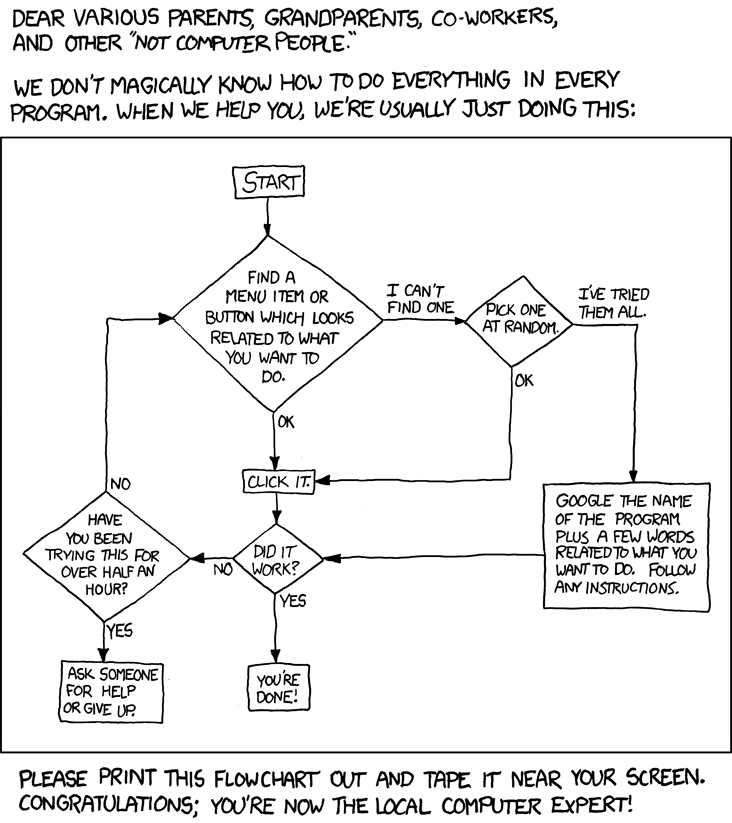
From XKCD.com - so very true.


So often someone will give me a mobile phone and say - "You're a techie/computer person can you fix this for me?"

I wish I had this in my pocket to give them.

Sometimes though some people do really want to learn, but you just don't have the time to help them every step of the way.

I learn best through a combination of tutorials, pictorials and project based or problem solving. So if you have someone who wants to learn "computers" try pointing them in these directions.

There are some good JAVA and .net tutorials as well.

http://www.homeandlearn.co.uk/index.html

http://www.techtutorials.net/index.html

http://inpics.net/index.html - I like this one becase it has step by step pictures.

http://www.baycongroup.com/tutorials.htm